
 Portrait
Fine hair
Keep soft curls from becoming a hard outline
Loose strands are easier to separate when the face and hair are sharp, evenly lit, and visibly different from the wall behind them.
Upload a JPG, PNG, or WebP image. Preview it before processing, then download a transparent PNG or continue editing the background.
A clean product outline is useful. Hair, fur, straps, and small gaps show whether a cutout is genuinely usable.
Portrait
Loose strands are easier to separate when the face and hair are sharp, evenly lit, and visibly different from the wall behind them.
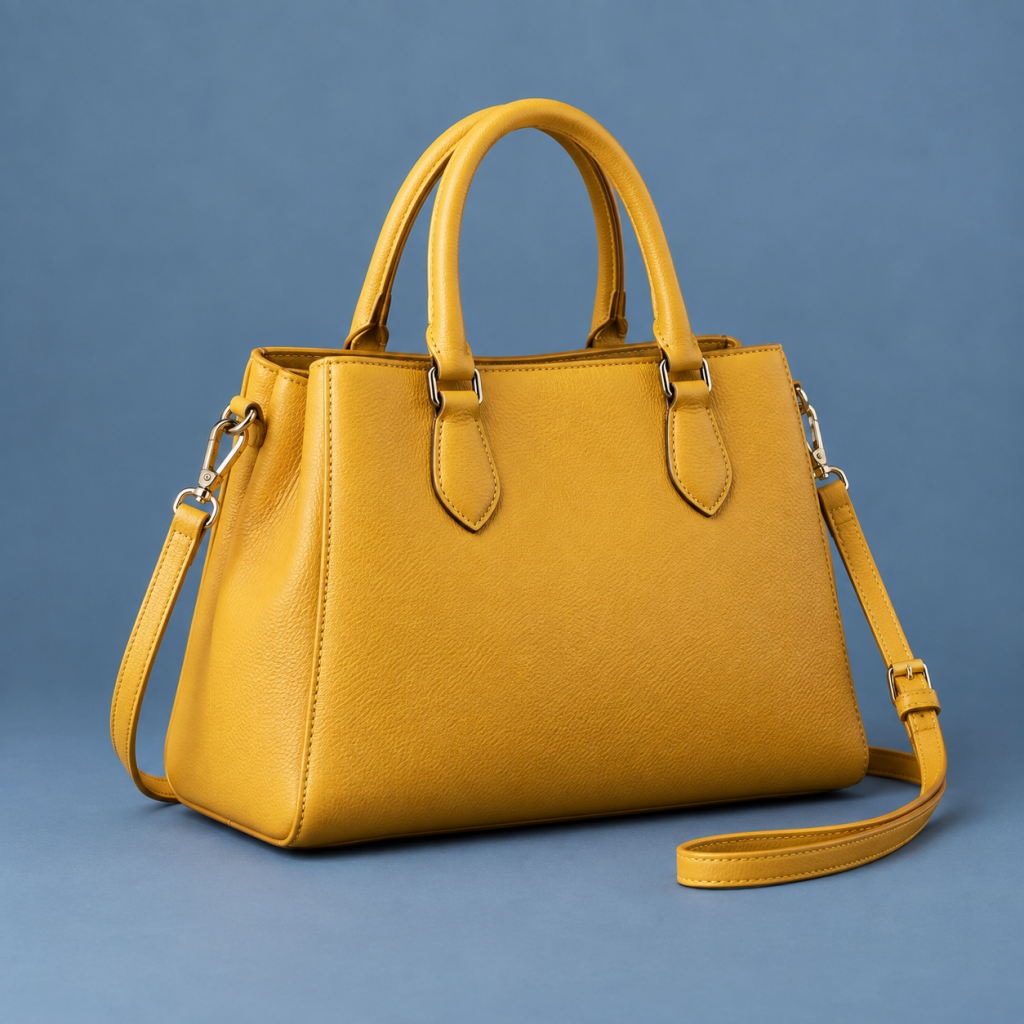 Product
A useful product cutout keeps the space inside each handle open and follows the shoulder strap instead of closing it into one solid shape.
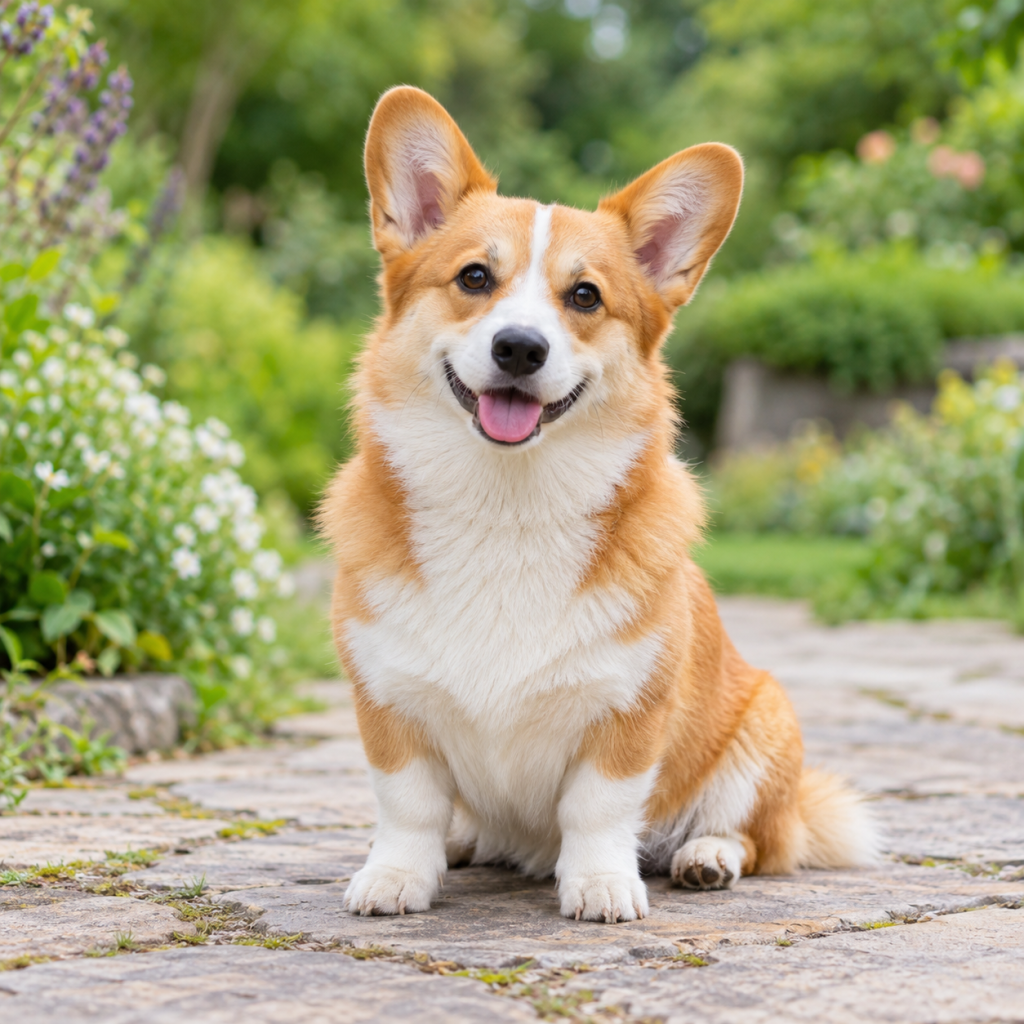 Pet
Pet
Fur contains hundreds of uneven edge points. A sharp original helps retain that softer boundary without carrying pieces of the garden into the result.
A result may look clean at page size and still contain a pale halo or missing detail. Inspect these four areas at full size.
Look for a thin strip of the old background around shoulders, shoes, packaging, or the base of a product.
Check spaces between arms, bag handles, chair legs, bicycle spokes, and leaves. They should be transparent too.
Hair and fur should not appear cut with scissors. A slightly soft edge is often more natural than an aggressively sharp one.
Decide whether the old ground shadow belongs in the final image. Product photos often need a new, controlled shadow after removal.
No layers to learn and no selection brush to trace around the whole subject.
Upload the full-size image when possible. Screenshots and images saved repeatedly may have rough pixels around the subject.
Look closely at hair, fingers, handles, spokes, leaves, and transparent objects before downloading.
Use PNG when the background must remain transparent. Choose a filled background when the destination does not accept transparency.
Removing a background changes the pixels around the subject. It does not automatically repair the photograph, enlarge it, or create missing parts.
The tool identifies the main subject and turns the surrounding area transparent. Small spaces inside the outline — such as the opening of a handle — should be removed as well.
The canvas normally keeps its width and height. A 1200 × 1200 upload should not become a sharper 2400 × 2400 file simply because the background is gone.
Download PNG for a reusable cutout. If the next website or form accepts only JPG, add white or another solid color before saving so transparent areas do not turn black.
Do not delete the original photograph after downloading the cutout. Keep it in case you later need a different crop, a higher-resolution export, or another attempt around a difficult edge.
The tool can separate many difficult subjects, but it cannot restore detail that is missing from the original file.
Best for overlays, logos, presentations, product layouts, and further editing.
Transparency supportedUseful for marketplaces, documents, profile forms, and platforms that flatten transparency.
Usually smallerMove the cutout into a color, blur, shadow, or replacement-background tool.
More controlChoosing automatic removal sends the selected image securely to our background-removal provider for processing. Erase, Restore, preview, and download corrections run in your browser after the result returns. Server processing is not described as“on-device.”
Open an answer without leaving the tool.
JPG, PNG, and WebP are accepted. Animated images and document files are not supported by this page.
Yes, when you choose PNG. JPG does not store transparency, so transparent areas must be filled with a color.
Small files, motion blur, strong compression, and a background similar to the subject can hide the true boundary.
Yes. The upload area, preview, controls, and downloads are designed to fit mobile screens.
No. It changes the background; it does not recreate missing resolution or repair an out-of-focus subject.