Print desk / reference 06
DPI vs PPI: What Do They Actually Mean for Digital Images?
PPI describes image pixels per inch. DPI describes printer dots per inch. They are related in print workflows, but they are not interchangeable—and neither number alone tells you whether an image looks good.
Pixels per inch
How densely an image’s pixels are mapped when it is printed or interpreted at a physical size. It connects pixel dimensions to inches.
Dots per inch
How a printer places physical ink or toner dots. Several printer dots may be used to reproduce the color of one image pixel.
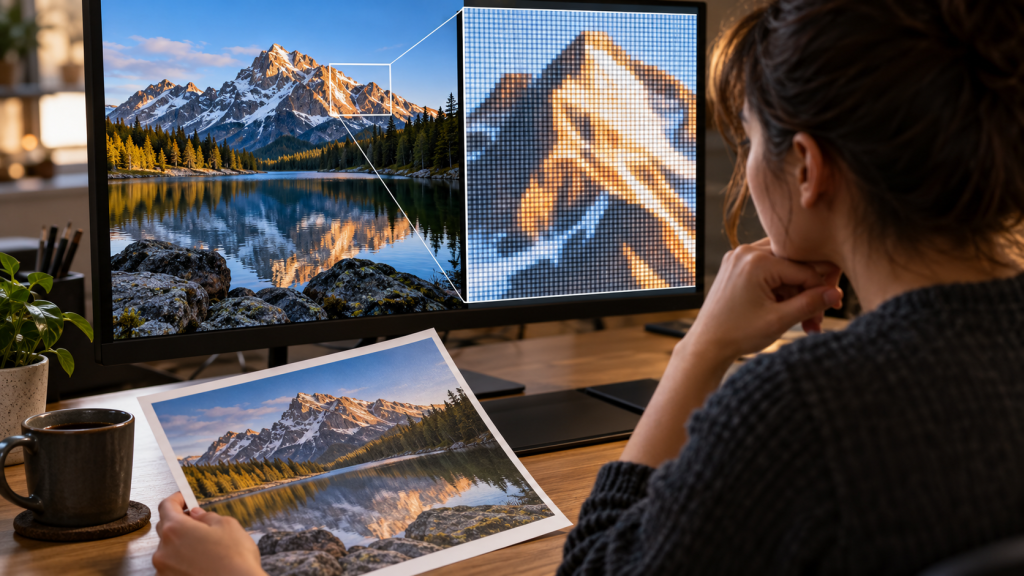
The calculation that matters
Print width in inches = pixel width ÷ PPI.
A 3000-pixel-wide image printed at 300 PPI is 10 inches wide. At 150 PPI it becomes 20 inches wide, but each inch receives fewer image pixels. Changing only the metadata from 72 to 300 PPI does not invent detail if resampling is disabled.
Screen use versus print use
On a website
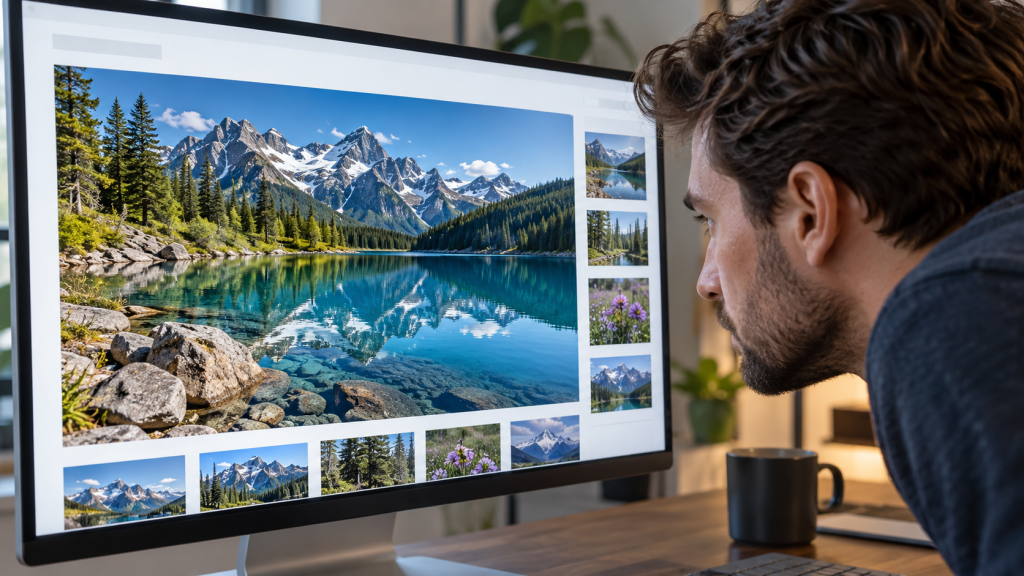
Pixel dimensions and displayed CSS size matter most. A 1200-pixel image remains 1200 pixels regardless of whether its metadata says 72 or 300 PPI.
In a layout
PPI tells you how those pixels map to a physical size. Enlarging the print lowers effective PPI; shrinking it raises effective PPI.
At the printer
The printer’s DPI capability describes marking resolution. Paper, ink, screening, viewing distance, and source quality all affect the result.
Resampling changes the file
When resampling is on, software adds or removes pixels to reach a requested size and resolution. Upsampling can smooth transitions, but it cannot recover authentic texture that was never captured.
For best results, start with enough real pixels, resize once near the end of the workflow, sharpen for the final output, and examine important details at 100%.
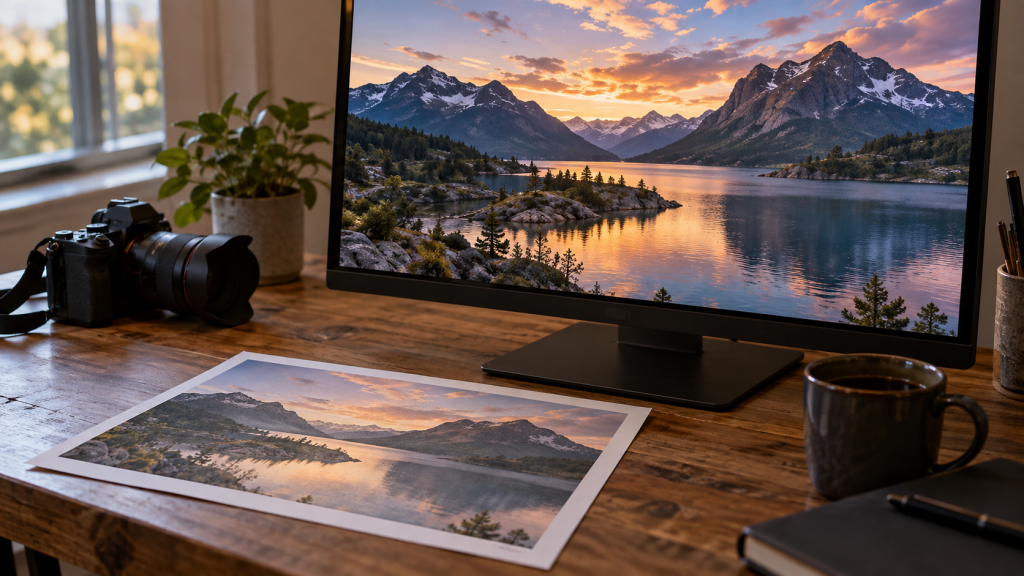
Before sending a file to print
- Ask the printer for the final dimensions, preferred color profile, file format, bleed, and recommended effective PPI.
- Check the image’s pixel dimensions before changing resolution metadata.
- Calculate the effective PPI at the intended print size.
- Proof small text, fine edges, gradients, and skin tones.
- Export a separate print copy; keep the original editable file.
A number changed. Did the image change?
Open a 3000×2000-pixel photograph, change its resolution metadata from 72 PPI to 300 PPI, and leave resampling disabled. The file still contains exactly 3000×2000 pixels. Only its suggested physical print size changes. This simple test separates resolution metadata from captured image detail.
Pixel count stays fixed. Print dimensions and PPI change in relation to each other.
Software creates or removes pixels. The actual image data and file dimensions change.
Upsampling can make an enlargement appear smoother, but it does not recover authentic eyelashes, fabric texture, handwriting, or surface detail missing from the source. Downsampling discards pixels; save a separate output copy instead of overwriting the master.
Worked print examples
| Image width | Target width | Effective PPI | What to examine |
|---|---|---|---|
| 3600 px | 12 in | 300 PPI | Fine detail at close viewing distance |
| 3600 px | 24 in | 150 PPI | Viewing distance and subject texture |
| 1200 px | 12 in | 100 PPI | Likely softness under close inspection |
These are planning examples, not universal pass-or-fail limits. A large poster viewed from several meters can tolerate a lower effective PPI than a small art print examined at arm’s length. Subject matter counts too: bold shapes hide softness better than tiny lettering or intricate line work.
What DPI describes at the printer
An inkjet printer may place several tiny ink dots to reproduce the color and tone represented by one image pixel. The printer’s advertised DPI therefore should not be compared one-for-one with an image’s PPI. Printer technology, halftone or screening method, paper coating, ink spread, driver settings, and viewing distance affect the visible result.
Ask the production company for its recommended effective image resolution instead of converting the printer’s maximum DPI into an image requirement. The operator knows the press, substrate, screening, and intended output size.
Useful question: “At the final dimensions and viewing distance, what effective PPI do you recommend for this job?”
Four jobs, four different decisions
Website and email
Prepare the required pixel dimensions and optimize the file. PPI metadata does not make a browser display more detail. Source pixels, CSS display size, and screen density control sharpness. Uploading a 300-PPI label onto a tiny file will not rescue it.
Office documents
Check whether the document application compresses inserted pictures. A high-resolution source may be downsampled during save or PDF export. Inspect the final PDF at the intended print size rather than trusting the editing canvas.
Commercial printing
Set final physical dimensions, verify effective PPI, use the requested color profile, include bleed when required, and proof critical colors. A detached “300 DPI” instruction is incomplete until the print size is known.
Large-format signage
Viewing distance changes the requirement dramatically. Sending an enormous 300-PPI file for a billboard can waste storage and processing time without producing a visible improvement. Follow the production company’s specification.
Preflight before delivery
- Confirm the final width and height in inches, centimeters, or millimeters.
- Read the file’s true pixel dimensions.
- Calculate effective PPI at that final size.
- Decide whether any resampling is genuinely needed.
- Inspect faces, fine type, lines, gradients, and textured surfaces at 100%.
- Export a separate delivery file and retain the untouched master.
Related sizing guides
For screens, set the output size in pixels and keep proportions locked when resizing. The ratio guide separates frame shape from resolution, and the banner guide applies those dimensions to a real layout.
Editorial note
Checked against primary references
This guide was written and reviewed by Yassine El Mernissi for CleanImg Online. Last reviewed: September 29, 2026.