Does Your CMS Preserve PNG Transparency in Thumbnails?
Test the picture that a shopper loads. Compare the original with generated thumbnails using a real WordPress sample.

The PNG you upload and the thumbnail a visitor receives can be different resources. Testing the original alone can miss a problem introduced by resizing, a theme, or an image CDN. Start by finding the exact file shown in the card and compare it with the original.
What happened to one real upload
We inspected the transparent backpack PNG used in our before-and-after example. We downloaded the full image and two derivatives created by this WordPress site, decoded each file, and checked its alpha channel. An alpha value of zero is fully transparent. Values between zero and 255 let some of the backing show through.
| File | Dimensions | Fully transparent pixels | Partly transparent pixels |
|---|---|---|---|
| Full PNG | 1200 × 675 | 583,926 | 4,928 |
| Medium PNG | 300 × 169 | 36,252 | 944 |
| Square thumbnail PNG | 150 × 150 | 11,045 | 840 |
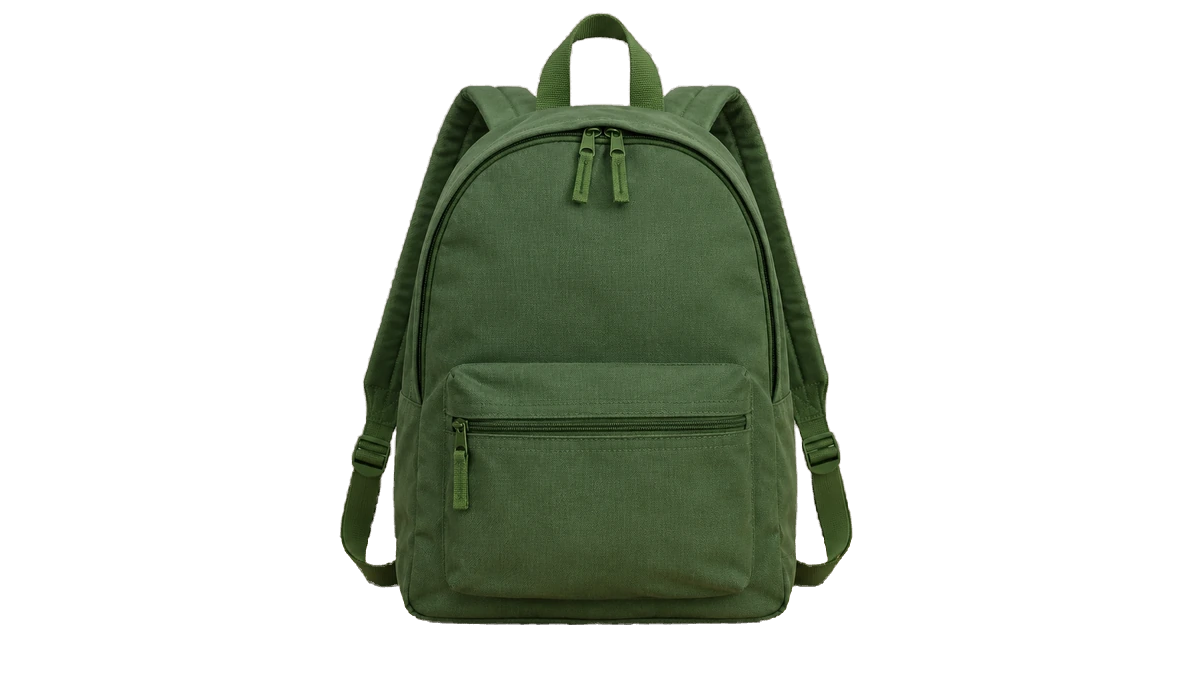
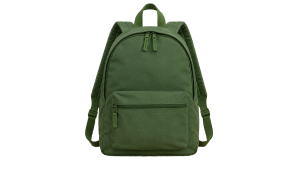
All three retained transparency in this test. The square thumbnail cropped the frame. The resized rectangular version followed the proportions of the upload. Pixel counts are expected to change with both cropping and resampling. Check whether the thumbnail keeps the parts of the subject that matter, and whether the outside pixels still reveal the backing. The counts describe these files from this installation. A different theme or image optimization pipeline can select or encode a different resource.

Test the image a shopper receives
- Open the actual product card. Inspect the public page or the preview of the final layout. Start at the viewport a buyer is likely to use. A desktop image and a mobile image can select different candidates from the same markup.
- Find the file URL. Use the browser’s element inspector to locate the image. Look at its loaded request in the Network panel or inspect the element’s
currentSrcproperty. A responsive image may have a different selected URL from the one listed first in the markup. - Save the selected resource. Open it in an image editor and place it over an obvious solid color, such as blue or magenta. The spaces around the subject should take on the new backing where the file has transparent pixels.
- Compare with the upload. Open the original in the same editor. If the upload remains clear and the served file has a rectangle baked into the image, locate the first derivative that changes. Check the CMS-generated size, the optimization plugin output, and the CDN response in that order.
WordPress exposes attachment URLs for different sizes, and the browser exposes the loaded candidate through currentSrc. These references describe the two sides of the check. WordPress attachment image sizes · MDN on currentSrc
Tell a painted rectangle from a white layout
Put an obvious background color behind the image on a local preview of the card. If the loaded file passes the layer test and the card still looks white, inspect the background of the image container, any outer element covering it, and the way the app renders previews. A white surface under a transparent image gives the same first impression as an opaque white image.
If the selected resource has lost alpha, check its actual format. A JPEG delivery copy cannot carry transparency. Compare the response format from the optimization service with your intended PNG or WebP setting. Make one configuration change, clear only the relevant cached variants if your service permits it, and reload. Verify desktop and mobile separately because the browser can choose different resources.
Inspect the edge as well as the outside area
A preserved alpha channel can still produce a poor thumbnail. In a tight crop, the subject may lose a strap or leave too little space around a logo. Downsampling can soften very thin detail. Test the small image on the intended layout at its real display size, then open it at full size to look for a pale rim or an unexpected solid patch.
Record the original file, the selected derivative URL, and the result over a colored backing. This gives the person handling the upload a reproducible report. If the image already looks white before upload, start with the PNG transparency checks to separate a viewer backdrop from pixels stored in the image.