Transparent PNG vs WebP: which format should you use?
Compare export options for transparent cutouts and decide when to keep a PNG master or supply a WebP copy.
Fast answer
Choose PNG when…
- You need a dependable editing or archive file.
- The image is a logo, icon, diagram, or sharp graphic.
- A destination asks for PNG or you exchange editable assets across different apps.
- File size is secondary to lossless preservation.
Choose WebP when…
- The image will be delivered on a modern website.
- Page weight and mobile loading speed matter.
- You need transparency with either lossy or lossless compression.
- You can keep a PNG master and export WebP for delivery.
What transparency actually means
Transparent pixels carry an alpha value describing opacity. A clean cutout needs smooth, partially transparent edge pixels—not only fully visible and fully invisible pixels. That is what keeps hair, fur, glass, and soft shadows from looking jagged.

Decision matrix
| Question | PNG | WebP |
|---|---|---|
| Transparency | Yes, lossless alpha | Yes, with either lossy or lossless color encoding |
| Typical web weight | Often larger | Often smaller |
| Editing master | Excellent | Possible, but less common |
| Photos with cutouts | Can be heavy | Usually efficient |
| Sharp flat graphics | Reliable | Test lossless mode |
| Legacy workflows | Safest | May require fallback |
A practical production workflow
- Keep the highest-quality original or PNG master.
- Remove the background and inspect edges over black, white, and a bright color.
- Export a WebP delivery copy at the exact dimensions needed.
- Compare both files at 100% zoom, not only their file sizes.
- If the WebP shows halos or broken detail, raise quality or switch to lossless.
Recommendation
For most modern websites, retain a PNG master and publish an optimized WebP. For brand assets exchanged between editors, PNG remains a strong default. The format label alone does not guarantee a smaller file: dimensions, color complexity, encoder settings, and quality all matter.
File size depends on the picture, not only the extension
A transparent logo with four flat colors behaves differently from a cutout portrait containing hair, fabric, soft shadows, and thousands of color transitions. PNG stores pixels losslessly, so complex photographic detail can create a heavy file. WebP can encode that same detail with lossless compression or discard a controlled amount of information in lossy mode.
Test the actual asset. Converting every PNG to WebP without checking dimensions, encoder mode, and edge quality is not a serious optimization workflow. A tightly optimized PNG icon may already be tiny. A transparent product photograph, however, can often lose a large part of its file weight when exported as WebP without a visible penalty at display size.
Bad exports reveal themselves at the edge
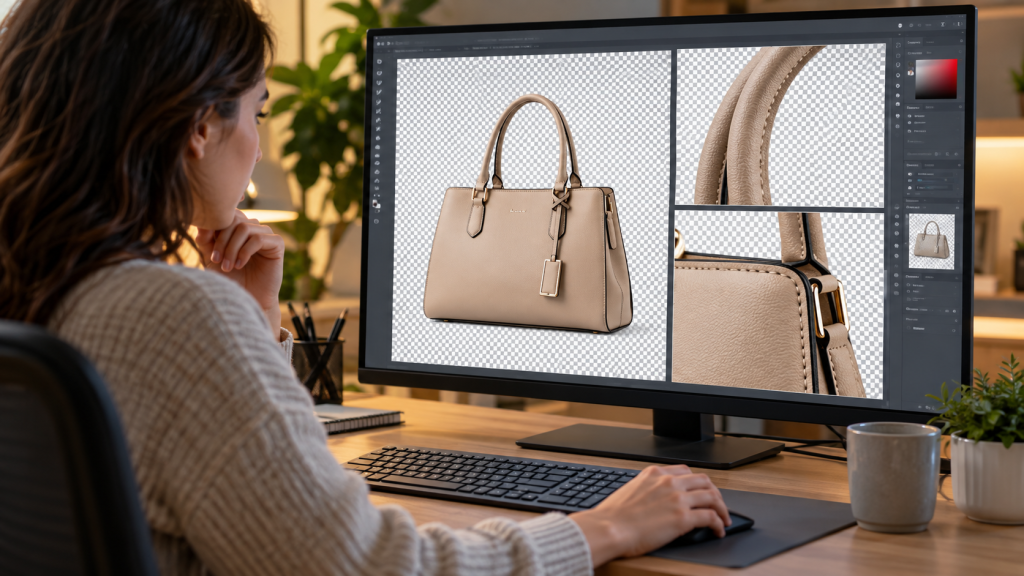
Place the cutout over white, near-black, and a saturated color. White exposes dark fringes. Black exposes pale halos. Bright colors reveal contamination left by the removed background inside partially transparent pixels.
Hair, fur, translucent fabric, glass, and soft shadows need gradual alpha values. Turning the mask into a hard visible-or-invisible boundary creates a paper-cut edge. Keeping too much of the original background creates the opposite problem: a colored glow around the subject.
Zoom in to diagnose the boundary, then judge the image again at 100%. A defect visible only under extreme magnification may never affect a visitor. A gray outline visible on a normal product card must be fixed before export.
Three-background test
- White: find dark contamination.
- Black: find pale matte pixels.
- Bright color: inspect semi-transparent edges and shadows.
Choose by job, not habit
| Asset | Working master | Web delivery | Reason |
|---|---|---|---|
| Brand logo | SVG or PNG | SVG; raster fallback if needed | Sharp edges and flat colors |
| Product cutout | Layered original or PNG | WebP | Photographic detail with alpha |
| Interface icon | SVG | SVG | Scales without raster blur |
| Soft shadow overlay | PNG | Lossless WebP after testing | Protects smooth alpha transitions |
Export controls worth understanding
Lossy quality controls how aggressively visual information is discarded. Lossless mode preserves decoded pixel values but may create a larger file. Alpha quality, when the encoder exposes it, affects transparent boundaries separately from visible color data. Metadata removal can save bytes, though copyright or color information may need to stay in professional workflows.
Compare decoded files inside a browser, not only thumbnails generated by the editor. Confirm that transparency survives the upload, inspect color on a real page, and retain the master outside WordPress. Future exports should not begin from an already compressed delivery copy.
A repeatable production route
- Finish the cutout in the highest-quality editable source.
- Trim unused transparent canvas; invisible empty space still increases dimensions.
- Export a PNG master when the workflow needs a dependable raster archive.
- Create WebP versions at the exact sizes required by the site.
- Compare weight and edge quality over several backgrounds.
- Keep the lightest version that preserves the intended appearance.
Convert and verify
Save a transparent PNG from the background remover and keep it as your master. If you need a WebP copy, export it in an image editor that supports alpha. Open both files over two solid backgrounds and inspect fine details and gaps. Use the edge repair guide if the cutout shows leftover color before conversion.
Checked against primary references
This guide was written and reviewed by Yassine El Mernissi for CleanImg Online. Last reviewed: September 29, 2026.